A smart plug goes offline every night. A camera drops out at 3pm. Your phone shows full Wi-Fi bars the whole time. That combination is the most common complaint we hear from smart home owners in Dubai, UAE, and it is almost never a broken device.
It is usually one of six causes, and they have an order. Work down the list below and most homes are fixed in ten minutes for nothing. This guide comes from the team that designs our home networking and IT projects, so the order reflects real call-outs rather than a copied checklist.
Why do smart devices keep disconnecting from Wi-Fi?
Smart devices keep disconnecting for one of six causes, listed here from the most to the least likely case we attend:
- Band steering: your router publishes one Wi-Fi name for two bands and shuffles devices between them. A 2.4GHz-only plug cannot follow.
- Building materials: a Dubai villa loses roughly 15 to 20 dB of signal through every concrete slab[8]. Block walls and marble add more.
- Device count and DHCP: the router runs out of addresses to hand out, so new devices cannot join.
- Channel congestion: in a Dubai Marina or JLT tower, your router shares three usable 2.4GHz channels with every neighbour.
- Router placement and heat: a closed cupboard in a Dubai summer is a bad home for a router.
- An ISP box past its useful life: real, but far less common than the five above.
Common mistake: buying a bigger router first. We have walked into homes with three routers, two extenders and the original fault still running. Fix the free things before you spend anything.
Is band steering breaking your smart devices?
Band steering is the single most common cause of smart devices dropping in Dubai homes. Your router broadcasts one Wi-Fi name and quietly decides whether each device sits on 2.4GHz or 5GHz. Router makers call it Smart Connect, Band Steering, or simply Dual Band Wi-Fi[2].
For a phone or laptop this works well. For a smart plug it does not. Most smart devices carry a 2.4GHz-only radio. When the router pushes them toward 5GHz, or hides 2.4GHz behind a combined name, they cannot follow. They drop, retry, and drop again.
The fix takes five minutes and costs nothing:
- Open your router admin page or ISP app and find the wireless settings.
- Turn off Smart Connect or band steering, which splits the network into two names.
- Name them clearly, for example Home and Home-5G, so the difference is obvious to everyone in the house.
- Join your phone to the 2.4GHz name, re-pair the smart devices, then move your phone back.
If your router will not split the bands, most models let you publish a separate 2.4GHz guest network instead. Leave the smart devices on it permanently. It doubles as a light form of device separation.
Quick check: if every smart device went offline on the same day, look at what changed. A firmware update or an ISP engineer swapping the box will often turn band steering back on without telling you.
Stuck on a router that hides its wireless settings? Send us a photo of the admin page on WhatsApp and we will point you at the right toggle.
Why do smart devices only work on 2.4GHz?
Smart devices stick to 2.4GHz for three reasons: range, walls, and price. 2.4GHz radio waves are longer, so they travel further and pass through a block wall better than 5GHz does. In a Dubai villa that difference is the whole argument.
The second reason is cost. A 2.4GHz-only chip is cheaper than a dual-band one. A smart plug that sends a few bytes when you tap a button has no use for 5GHz speed, so manufacturers fit the cheaper radio[1]. That decision is baked into the hardware. No router setting can undo it.
This is also why some homeowners skip Wi-Fi for their sensors and switches. Zigbee, Z-Wave and Thread are separate low-power wireless standards built for exactly this job, and they keep dozens of battery devices off your Wi-Fi entirely. We cover that trade-off fully in our guide to smart home protocols in Dubai.
One more point people get wrong: Matter does not solve this. Matter is a compatibility standard, so an Apple, Google and Amazon setup can share devices. A Matter-over-Wi-Fi plug still runs on 2.4GHz, and still drops when band steering moves it.
Does Wi-Fi 6E or Wi-Fi 7 fix smart home Wi-Fi?
No, and this is the correction that saves Dubai homeowners the most money. Wi-Fi 6E and Wi-Fi 7 added a third band at 6GHz. Your smart plugs, bulbs and sensors cannot use it, because their radios only speak 2.4GHz.
Think of it as a new lane on Sheikh Zayed Road that only certain cars are allowed to enter. A recent iPhone can use 6GHz. A Wi-Fi 7 laptop can. A 2.4GHz smart plug cannot even see that the lane exists.
The 6GHz band in Wi-Fi 6E and Wi-Fi 7 does nothing for a 2.4GHz smart plug. It cannot join that band at all.
There is one indirect gain, and it is real. Moving your TVs, laptops and phones onto 6GHz takes their traffic off the crowded 2.4GHz and 5GHz bands. That leaves 2.4GHz quieter for the devices stuck there. That is a side effect of a good network design, not a fix for a device that keeps dropping.
Real talk: we specify Wi-Fi 7 access points on villa rebuilds because they handle a house full of phones, cameras and 4K streams better. We do not pitch them as a cure for a smart plug problem. If a shop says otherwise, ask which band your plug uses.
Has your router run out of room for devices?
Very possibly: the DHCP pool fills up long before the router itself struggles. Every router hands out an address to each device that joins, using a service called DHCP. That range is called the pool. On plenty of home routers it is set far smaller than the router can actually manage.
When the pool is full, new devices simply cannot join. Nothing breaks loudly. A bulb you added last week just refuses to pair, and an older device that dropped out cannot get back in. The symptom looks random. The cause is arithmetic.
How to check it, in ten minutes:
- Open the router LAN or DHCP settings and read the start and end address of the pool.
- Count the connected devices in the router client list. Include everything: TVs, speakers, cameras, robot vacuums, tablets nobody uses.
- Widen the pool so it comfortably exceeds that count, then shorten the lease time so addresses from devices that left recycle faster.
From our projects: the pattern is a home that added smart devices steadily over two years, crossed some quiet threshold, then had devices fail in the same week[9]. There is no published number where this starts. It depends on the router and the firmware.
Why is Wi-Fi so weak in a Dubai villa?
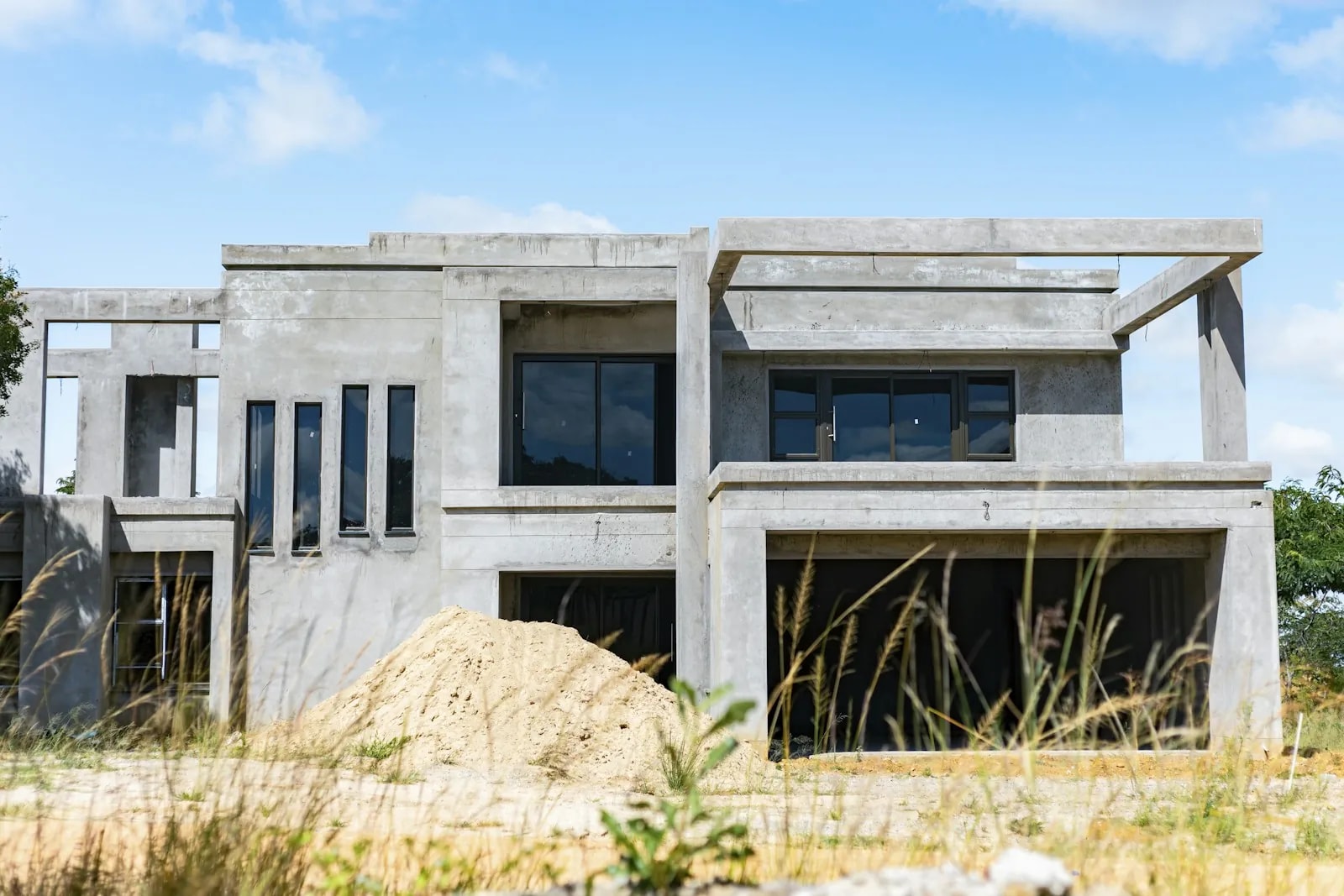
Wi-Fi is weak in Dubai villas because they are built from reinforced concrete, block and often marble, three of the least friendly materials a radio wave can meet. Advice written for a timber-framed house in the United States simply does not apply here.
Our own survey work across Dubai villas puts the loss at roughly 15 to 20 dB through every concrete slab[8]. Vendor attenuation tables agree on the scale. Drywall costs around 3 dB, glass 2 to 4 dB, brick 6 to 8 dB, and reinforced concrete 20 to 25 dB[3]. Steel reinforcement inside the slab makes it worse.
Now do the sum for a typical villa in Dubai Hills Estate or Arabian Ranches. The router sits by the fibre entry point on the ground floor. The signal crosses one slab to reach the first floor, then a load-bearing block wall to reach the far bedroom. Two barriers are enough to leave a smart lock with a signal too weak to hold.
Common mistake: putting the router in the store room or under the stairs because that is where the fibre arrives. An access point on a ceiling in the middle of the floor beats a stronger router in the wrong place every time.
Foil-backed insulation deserves a mention too. It is used across Gulf construction to keep heat out, and foil is metal, so it reflects radio waves. A room behind it can be dead while the room next door is fine. Build patterns vary by community, which our guide to smart home communities in Dubai goes into.
Why is apartment Wi-Fi worse in Marina and JLT?
Apartment Wi-Fi in Dubai Marina, JLT, Business Bay or Downtown Dubai suffers from crowding, not weak signal. Mixing this up with the villa problem sends people down the wrong path.
The 2.4GHz band has only three channels that do not overlap: 1, 6 and 11. Every router in the tower is competing for those three. Your signal is strong, but it spends its time waiting for a gap in the traffic, and your smart devices time out while it waits.
Tell the two problems apart this way:
- Attenuation, the villa problem: signal is fine near the router and dies as you walk away, especially through a floor. A stronger signal in that room fixes it.
- Congestion, the tower problem: signal bars are full everywhere, yet devices are still slow and drop out, often worse in the evening. A quieter channel fixes it, not a stronger radio.
The fix is free. Install any Wi-Fi analyser app on an Android phone, walk the apartment, and see which of channels 1, 6 and 11 is least busy. Set your 2.4GHz radio to that channel by hand, because automatic tends to pick the same crowded channel as everyone else. Then move phones, laptops and TVs to 5GHz.
Is your du or Etisalat router the bottleneck?
Sometimes, but later in the list than most people assume. Both du and Etisalat by e& now supply capable routers with new fibre plans, and both offer residential fibre up to 10Gbps[5][4]. If your box arrived in the last two or three years, it is probably not your problem.
The box becomes the bottleneck when it is old, when it is a basic model from an entry-level plan, or when its band steering cannot be turned off. That last one matters most for a smart home. If you cannot split the bands and cannot create a 2.4GHz guest network, you have hit a real wall.
You then have two routes, and both start with a phone call:
- Ask your ISP for a newer router or a mesh add-on. Both du and e& run their own whole-home Wi-Fi options, and an upgrade on your existing plan is usually the cheapest move you will make.
- Run your own router behind theirs. e& asks customers to keep the supplied router as primary for full service support. It says your own primary router can be discussed with their field engineer where workable[4]. Whether a du or e& box can run a clean bridge mode varies by hardware and plan, and owners report different results.
Real talk: do not change your ISP setup based on a forum post. Call du or e& support and get their answer for your exact hardware and plan. Anything that breaches your service terms is not worth the saving.
One thing an ISP upgrade will not fix: a faster line does nothing for band steering, concrete walls, or a full DHCP pool. Those faults sit between your router and your devices, where the internet plan has no say.
Should you check a router is TDRA approved?
Yes, before you buy. TDRA is the UAE's Telecommunications and Digital Government Regulatory Authority. Any wireless equipment sold or supplied commercially in the UAE needs TDRA type approval, and that covers routers, access points, and smart home hubs[6].
Equipment brought in for genuine personal, non-commercial use follows a separate customs route rather than the full type approval process[6]. So bringing a mesh kit back in your suitcase is not the same question as a shop importing a container of them.
The practical point is simpler than the regulation. A device that was never type approved was never checked against UAE technical standards. Buying from a UAE retailer avoids the question, and gives you a warranty you can actually claim.
Mesh Wi-Fi, extender or wired access points for a Dubai villa?
In a concrete Dubai villa, wired backhaul wins. These three get sold as if they were the same thing, and they are not.
The deciding factor is backhaul, which just means how a second unit sends data back to your main router. If it does that over Wi-Fi, it spends part of its own capacity on the relay. Every concrete slab in the path makes that relay more expensive. If it does it over an Ethernet cable, the relay costs nothing[7].
| Option | How it works | Best for | The catch in a Dubai villa |
|---|---|---|---|
| Wi-Fi extender | Repeats the signal it receives, usually under a second Wi-Fi name | One weak corner in a small apartment | Repeats a weak signal as a weak signal. Devices cling to the wrong name and drop. |
| Mesh kit, wireless backhaul | Two or three nodes share one Wi-Fi name and relay to each other over the air | Open-plan apartments and townhouses on one floor | Each hop through a concrete slab costs throughput. Coverage looks fine on the app, performance does not. |
| Mesh kit, wired backhaul | The same nodes, joined by an Ethernet cable instead of by radio | Homes with an existing data point in more than one room | You need the cable. If the villa was wired at build stage, this is the best value fix available. |
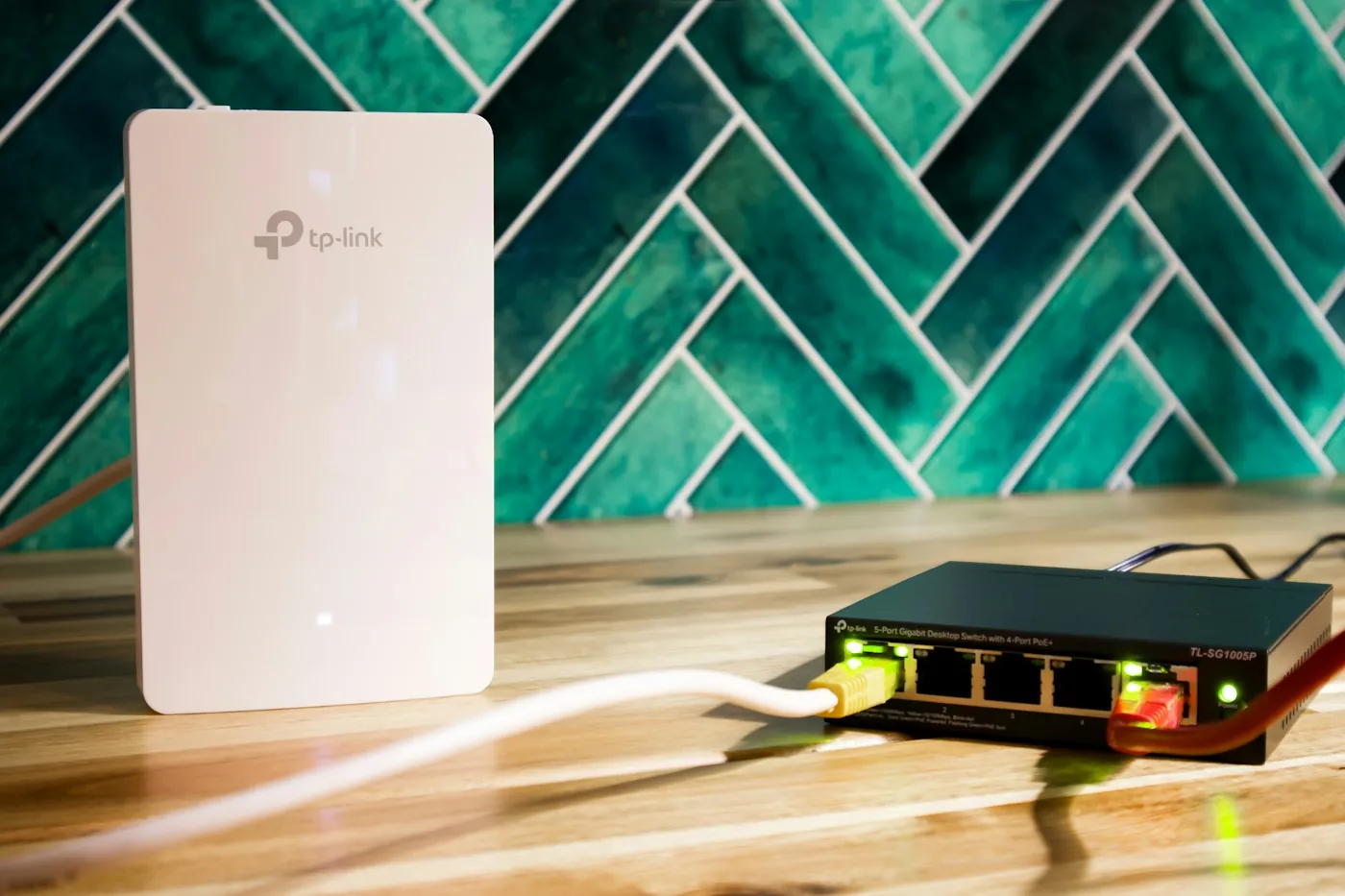
| Wired PoE access points | Ceiling-mounted units, each on its own Cat 6A run back to a switch, powered over that cable | Multi-floor villas and device-heavy homes | Needs cabling and a survey. It is the only option that scales past a handful of rooms. |
Our villa network rebuilds typically use six to nine access points, sized from an on-site survey rather than from floor area[8]. Two villas of the same size in Tilal Al Ghaf can need different counts, because slab positions and block-wall runs decide it, not square metres.
If your home is still being built, none of this has to be a problem. Cat 6A pulled before the walls close costs a fraction of chasing it in later. Our guide to smart home pre-wiring in Dubai covers planning those runs.
Is your router cooking inside a cupboard?
Heat is the cause nobody checks, and in Dubai it is the one with the clearest local logic. A router is a small computer with no fan. When it gets too hot, it slows itself down to protect the chip, and the radios are usually first to suffer.
Then look at where routers live in Dubai homes. Inside the media cupboard with the doors shut. In the store room next to the water heater. On a shelf with the ISP box, a switch and a set-top box stacked on top of it. Every one of those is a sealed hot box in July.
Quick check: if your Wi-Fi is fine in the morning and unreliable by late afternoon, or noticeably worse in summer than in winter, touch the router. If it is too hot to hold comfortably, you have found something.
The fix costs nothing. Take it out of the cupboard. Stand it upright with clear air on all sides, off the floor, away from the AC unit and away from anything else that runs warm. Central and high beats hidden and low, every time.
We see the professional version too. Access points buried in plaster ceilings with no air gap run hot through August and drop clients on a cycle. That is why our designs never plaster them in[8].
Should smart devices sit on their own network?
Once you pass a dozen or so devices, yes. The stability reason comes first, and it is the one nobody explains.
On a flat network, every device shares the same broadcast space. Smart devices are chatty: they announce themselves, hunt for hubs, renew addresses, and re-scan when they lose the signal. On a network with 40 of them, that background noise competes with the traffic your laptop and your video call actually need. Splitting them apart contains the noise.
You have two levels of fix, depending on your hardware:
- The free version: put every smart device on your router's guest network, ideally a 2.4GHz one. Most home routers offer this, and it already separates the noise.
- The proper version: a VLAN, which is a separate network running on the same cables and switches. Our villa builds run seven of them, keeping management, smart devices, audio-video, cameras, voice and guests apart[8].
There is a security case as well. A separated smart device that gets compromised cannot reach your laptop, your work files, or your camera recorder. That is why we segment every install with security and surveillance hardware. The full threat picture sits in our guide to securing a smart home from hackers in Dubai.
Not sure your router supports VLANs? Ask our team with the model number and we will tell you in one reply.
What order should you fix smart home Wi-Fi problems in?
Fix smart home Wi-Fi problems free settings first, paid hardware last, in the nine steps below. Do not skip to step 7 because a shop told you to. Most Dubai homes stop somewhere in the first five steps and never spend a dirham.
| Step | What to check | How to fix it | Cost and time |
|---|---|---|---|
| 1. Band steering | Is 2.4GHz hidden behind one combined Wi-Fi name? | Turn off Smart Connect, split the names, re-pair the devices | Free, 5 minutes |
| 2. Placement and walls | How many slabs and block walls sit between router and device? | Move the router central and high, out of the store room | Free, 5 minutes |
| 3. Router heat | Is it inside a closed cupboard or stacked under other boxes? | Open air on all sides, upright, away from the AC unit | Free, 5 minutes |
| 4. DHCP and device count | Is the address pool smaller than your device list? | Widen the DHCP range, shorten the lease time | Free, 10 minutes |
| 5. Channel congestion | In a tower, which of channels 1, 6 and 11 is busiest? | Set 2.4GHz manually to the quietest channel, move phones to 5GHz | Free, 15 minutes |
| 6. ISP router limits | Can your du or e& box split bands and run a guest network? | Call du or e& about an upgrade or your own router, on their terms | Free call, plan dependent |
| 7. A wired access point | Is one zone still dead after steps 1 to 6? | Add one access point on Ethernet, not another wireless repeater | Paid, half a day |
| 8. Device separation | Are 40 smart devices sharing one flat network? | Move them to a guest network, or a VLAN if the hardware allows | Free to moderate |
| 9. Professional survey | Multi-floor villa, or repeated failure after steps 1 to 8 | Site survey, cabling and surveyed access points | Paid, from AED 2,000 |
Do them one at a time and give each change a day. Changing four things at once tells you nothing about which one worked.
Cheat sheet: symptom, cause and fix
Find your symptom on the left. The middle column is the cause we find most often behind it, and the right column is what to do first.
| Symptom | Most likely cause | Fix |
|---|---|---|
| Smart bulbs and plugs drop out, but your phone stays connected | Band steering pushing a 2.4GHz device to a band it cannot hold | Split the Wi-Fi names and re-pair the devices on 2.4GHz |
| A new device will not join Wi-Fi during setup at all | Your phone is on the 5GHz side of a combined network | Move your phone to a 2.4GHz name or guest network, then pair |
| Everything worked, then several devices dropped on the same day | A firmware update or ISP router swap reset the wireless settings | Recheck band steering and the DHCP range after any update |
| One room or the whole upper floor never holds a connection | A concrete slab or block wall between router and device | Add a wired access point in that zone, not another router |
| Wi-Fi is unreliable across a Marina, JLT or Downtown apartment | Channel congestion from neighbouring networks in the tower | Set 2.4GHz to the quietest of channels 1, 6 or 11 by hand |
| Devices started failing as you added more smart gadgets | The DHCP address pool is full, or the router is straining | Widen the DHCP range first, then judge the router |
| Wi-Fi is fine in the morning and poor by late afternoon | The router is overheating inside a closed cupboard | Move it into open air, upright, away from the AC unit |
| One misbehaving device seems to slow the whole house | A flat network with no separation between smart devices and laptops | Move smart devices to a guest network or an IoT VLAN |
| A mesh kit covers the villa on paper but feels inconsistent | Wireless backhaul losing throughput on every hop through concrete | Cable the nodes together, or move to wired access points |
When is it time to call a professional?
When you have worked the ladder and the home is still unreliable. That is the honest line, and it is a smaller group of homes than most installers admit. Four situations genuinely need a survey rather than another purchase:
- A multi-floor villa. Two or three concrete slabs cannot be fixed wirelessly. This needs cable and access points placed from measurement.
- A device-heavy home. Once lighting, climate, cameras, audio and access control all run on one network, separation stops being optional.
- Repeated failure after steps 1 to 8. If the fault comes back every few weeks, something structural is wrong and guessing is expensive.
- You want it done once. Some owners would rather pay for a survey than spend three weekends on it. That is a fair choice.
A survey is not a sales visit. We walk the home, measure signal room by room, scan for interference, and map where the slabs and block walls sit. The output is a plan with access point positions and cable runs on it. Targeted home networking fixes start from AED 2,000. A full villa rebuild runs AED 18,000 to AED 60,000 depending on size and cabling[8].
Get the network right and the rest of the house behaves. Automated lighting and climate control scenes stop half-firing, and voice commands stop timing out. Our complete smart home guide for Dubai covers what sits on top, and the villa owner's guide covers the whole-house version.
Our team has worked on smart home automation projects across Dubai, UAE since 2016, planning each network and coordinating the work until it is handed over. We are rated 4.9/5 by Dubai homeowners, and sales enquiries are answered within 2 hours[9].
Still dropping devices after the free checks? Send us your floor plan and a photo of your router setup. Book a free consultation or message the team on WhatsApp, and we will tell you whether you need a survey or one setting changed.